background image

Recently a customer asked us a question -

I have an emergency task. I have a spreadsheet with all product codes (tens of thousands of them). I need to print barcodes for them. I do not have an advanced IT system for this task. I want to print them one by one in Avery label papers. Do you have software doing that?

Small companies often have needs to print barcodes.  But not many of them have dedicated IT systems for the purpose, or in-house programmers that can come up with a solution at any time. Some examples -

  • You want to add a barcode into the invoices, so that you can find the invoice quickly. Your current software that prints invoices, Quickbooks, does not have the capability.
  • You run a retail store and occasionally you bought some items with no UPC barcode on the box. You want to print UPC barcodes and stick them on the boxes by youself.
  • You want to stick barcodes with special serial number encoded. In this way, you can check if the item returned by your customer was indeed sold from your store.

The first option is to use barcode fonts. A typical solution is to add a column in the spreadsheet that holds the barcode strings, and use Word Mail Merge to get the barcodes into the label paper (which is a Word document0. It does not require advanced programming knowledge. Unfortunately, many companies do not use VBA at all nowadays, and it seems to become a formidable task for many people.

Fortunately, Monterey Barcode Creator has a “batch printing” feature.  You do not need any programming knowledge at all to print barcodes into label papers with this program.

Let’s assume that you have a speadsheet that lists all yor product codes in one column. You want to print sticks with barcodes on it, and each stick corresponds to one product code.  You will then print them to Avery Label Paper 3111 on a laser printer. After stickers are printed, you stick them one by one on the item box.

CSV File

First of all, Monterey Barcode Creator can’t read Excel file directly. You will have to export to a .csv file.  CSV is the abbreviation of Comma Separated Value, a format used to exchange data between software.  Each line is a record, and column values are separate by commas.  The below line is an example:

1003434323214, 0-20-ABC-2004, Product Item One

You can generate a .csv file by choosing “Save As” and specify .csv as the format.

As you can see from the example record, a line contain multiple columns. Columns are numbered from 1. Record your column number, you will need it soon.

You can also use Copy/Paste to paste the whole column to Notepad, and save it into a text file. This file can be thought as a special type of .CSV, as each record has only one column.

Adjusting Barcode Properties

Now start Monterey Barcode Creator.  The images created by Barcode Creator can contain three parts - barcode, human readable text and a text comment. We do not need comment here so we uncheck “comment” box. Change the barcode type to “Code128″. You might want to change other properties, such as BarHeight and NarrowBarWidth.  There are quite a number of properties that you can change. If you are interested, read the product manaul at http://mdn.morovia.com/manuals/mbc3/shared.properties_methods.php.

Remember that all barcodes will have the same property set (except the barcode and human readable text).

After you are satisfied with the barcode size, you can now print them out. From File Menu, choose Print.

Batch Printing in Barcode Creator
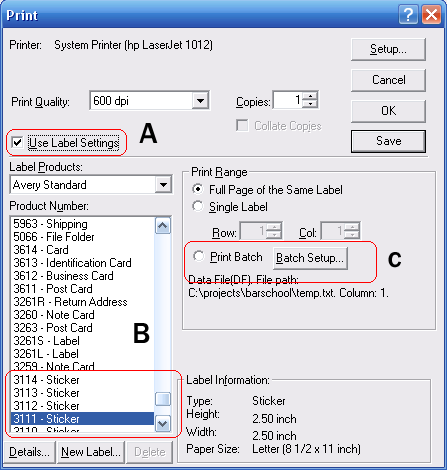
Print Dialog in Monterey Barcode Creator 3

Print Dialog in Monterey Barcode Creator 3

First, make sure that “Use Label Settings” is checked. If it is not checked, you will not see the bottom portion of the dialog. Use “Label Products” and “Product Number” to select the label paper you print on.  The program has most paper listed, but if you can not find the one you have, you can enter it into the database by selecting “New Label…”.  After you are done with the label paper selection, Click on Print Batch.
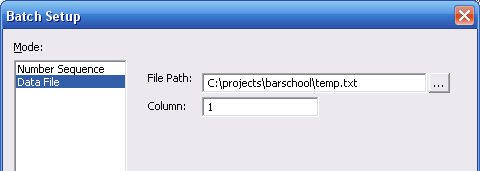
print-batch-datafile-setup

Batch Setup (Data File Mode)

Monterey Barcode Creator supports two batch modes - Number Sequence and Data File. Number Sequence mode allows you to specify a sequence. For our work, we will use Data File mode. Click on the Data File to switch, and right side of the dialog will change accordingly. You will supply two parameters:

  1. File Path. This is the path of your CSV or Text file. You can use the small “” button to navigate to the file, or type it by yourself.
  2. Column. The cardinal of the column that the data is from.  If  you pasted the data to a text file, you only have one column and it cardinal is 1.

Click OK to dismiss the setup dialog, and click OK on the Print Dialog to print out. If you have hundreds of thounds of records to print, it may take quite some time.

The data file we used for this article can be downloaded here. And the print result is here.

Creating Barcode Strings Using PHP

If you are creating barcode using barcode fonts, you should already know that you can not just type your number and format with a font. Extra characters such as start/stop characters, and often times checksum characters are required to be present in the barcode.  Some formats such as Code 39 and Code25, are easy. But formats like Code 128 are quite difficult. To easy the difficulty creating barcode strings, Morovia provides source code, Windows DLLs and COM classes that you can integrate in your applications.

For an overview on these utilities, visit http://www.morovia.com/font/support/font-tool.asp.

Many people asked the question - do you have an example with PHP? It turns out that it is not difficult to do it in PHP at all. The following code creates a Code128 barcode string (which becomes a Code128 barcode after being formatted with Morovia Code128 font):

<?php
$encoder = new COM("cruflMorovia.Barcode");

$result = $encoder->Code128Ex(”PN-NUMBER-13334432″);

echo $result;
?>

Note that the Prog ID of the encoder COM object is cruflMorovia.Barcode. You can write code for other barcode types. For example, for EAN-128 barcodes, just replace Code128Ex with EAN128Ex.

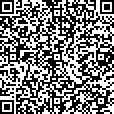
GS1 has published a new coupon format to be used in North America, called DataBar Coupon. This coupon code can encode. The Application Identifier (AI) for this code is 8110, and the value can be from 25 to 39 digits long.

You can use Morovia DataBar Fontware to create such a coupon. You can create the code in drawing programs such as Adobe Illustrator, or Word Processing programs such as Microsoft Word. Adobe Illustrator users might want to read this article for a tip on adjusting line heights.

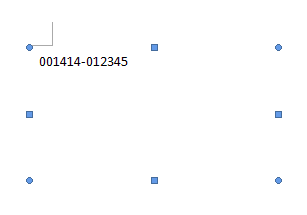
  1. The coupon code requires the company prefix and offer code to be printed on top of the barcode. Started with a text box and enter this information on the top.
    word-textbox
  2. Open Morovia DataBar Font Encoder GUI.
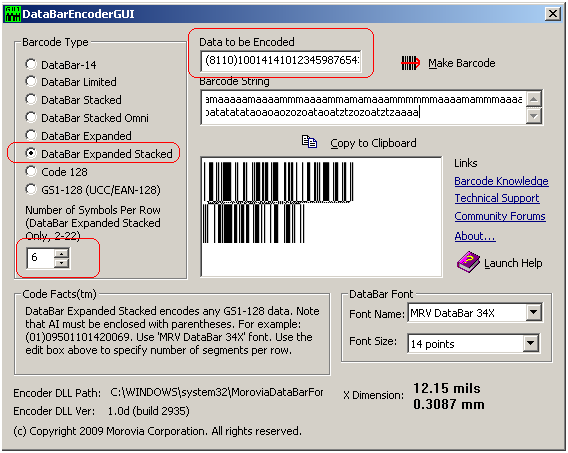
  3. Choose DataBar Expanded Stacked in the Barcode Type box, and enter the coupon code in the Data to Be Encoded box. Note that you must include both AI and data, and AI must be enclosed with parentheses. Make sure that the Symbols Per Row is set to 6.

    DataBar Encoder GUI

    DataBar Encoder GUI

  4. Press Make Barcode button and the barcode will appear below.
  5. Press Copy to Clipboard to transfer the barcode into clipboard.
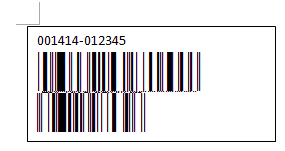
  6. In Microsoft Word, press Paste to Paste the barcode into the text box. Right click on the barcode and choose Ignore Once to disable spell checking.
    word-databar-coupon-barcode
  7. Now you created the coupon code. According to GS1, before January 2010 you should also include the UPC-A coupon symbol. After that date the UPC-A coupon is no longer necessary.

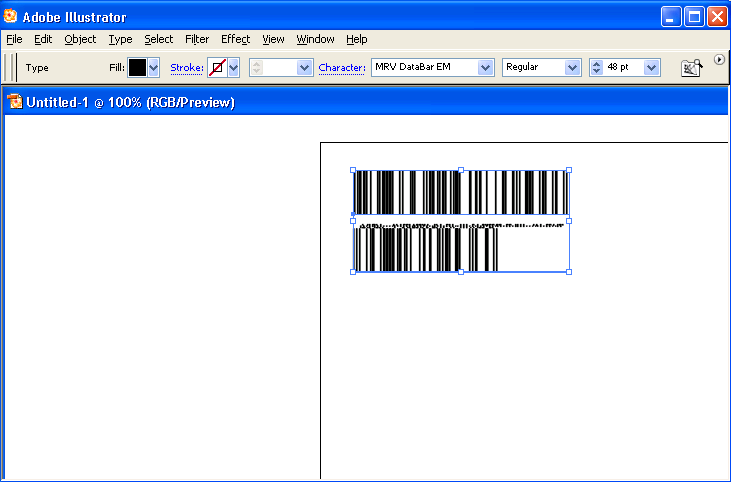
In Morovia DataBar Fontware’s manual, it explains how to overcome the line gap issues in several programs, such as Microsoft Visio. It did not mention Adobe Illustrator, which alos has the same issue.

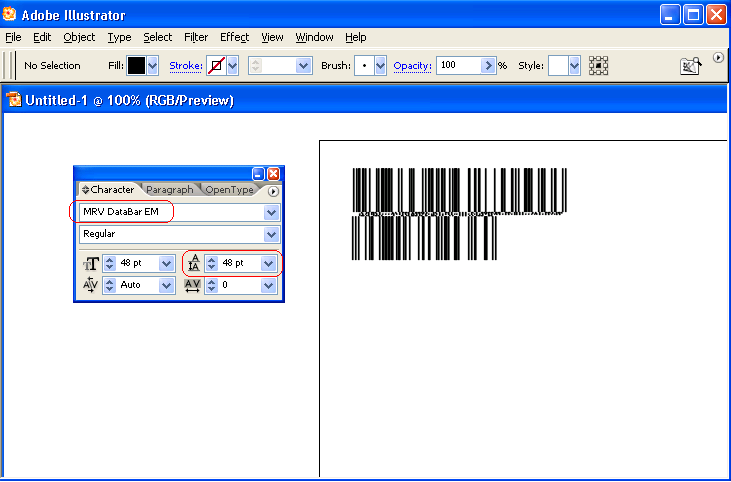
Adobe Illustrator does not present a menu item for you to adjust line height.  That is at least what I found on my computer (Illustrator CS2). Instead, you have to press Ctrl+T to pop up the character palette, and make the line height the same as the font size you selected.

illustrator-databar-problem

In the character palette, make sure that the line height is the same as the point size. The gap then disappears.

illustrator-databar-good

Conclusion - in Adobe illustrator you can adjust the line height. To do so, press CTRL+T to pop up character palette and change the line height to be the same as the font size.

Free Online Barcode Generator

You can now create barcode easily from your browser. Morovia has just announced the availability of Online Barcode Generator. Below are some samples:


Again the address is http://www.morovia.com/free-online-barcode-generator/.

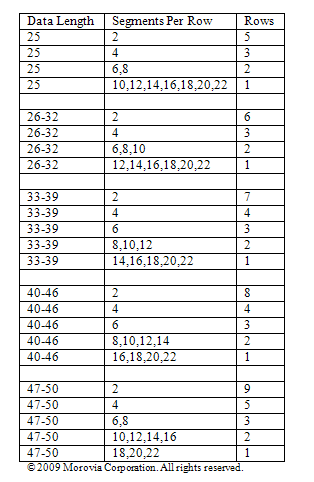
The new coupon code (AI 8110) is required to be printed in GS1 DataBar Expanded Stacked. Its data can be quite long. In fact the length is the longest we have ever seen in GS1-128 - from 25 to 39 digits. GS1 DataBar Expanded Stacked can have multiple rows, depending on the data and the value of SegmentPerRow. The value of SegmentsPerRow can be anywhere between 2 and 22. 22 also produces one-row barcode.

In some cases, it is desirable to find out the range of SegmentPerRow, based on the data encoded and the number of rows desired. For example, our coupon codes can be between 25 to 39 digits, but we want all barcodes created two rows.

To find out the relationship among the data length, segment per row and the number of rows in the barcode created, we wrote a simple perl program. It calls the encoder DLL included in Morovia DataBar Fontware to get the barcode string, then parses the string to find out how many rows in the result. It generates randomized data as input (based on DataBar Spec, it is not necessary as numeric data with the same length should always create the same length barcodes, all things being equal). It increases the number of digits one by one, and calculates using all possible SegmentsperRow values. Warning: if you are running the trial version, do not run this program - you will have to press OK button hundreds of times to complete the program (each call pops up a ‘trial notice’ message box).

We found that the results can be divided into five groups - 25 digits, 26-32, 33-39, 40-46 and 47-49. It seems that each segment encodes 6 digits. Note - the digits we talked here refer to the coupon code, not including the AI portion.

coupon code length vs. row

For small manufacturers with dedicated IT stuff, it is often a pain to write a trivial program. Numbers such as UPC-A, EAN-13, SCC-14, SSCC-18 and Bill of Lading (BLN) all require a modulo 10 check digit at the end. Although the algorithm is simple, it is easy to make mistaken if done by human. Fortunately you can now calculate check digits online using this free web utility. All you need is an Internet connection.

UPC Coupon Value Codes

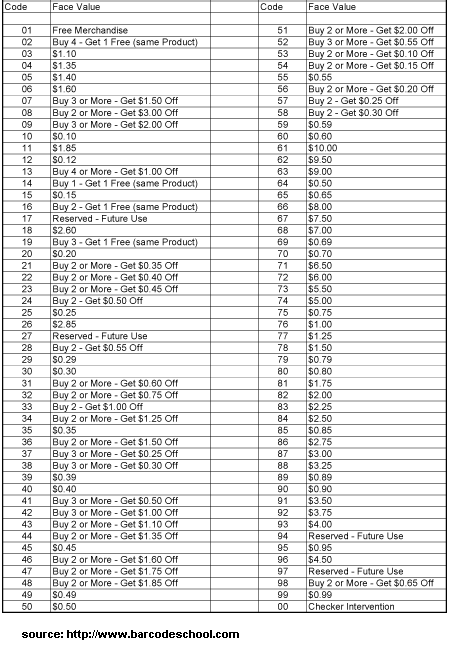
The value codes are the two digits before the last check digit. They have fixed meanings as defined by GS1 organization. The table below lists the meanings effective as of writing.  Occasionally GS1 changed the meanings of some. Fortunately, The changes were rare and the last update happened in year 200.

coupon-values-upc

shipping-label-barcodes

Nowadays manufacturers and importers are required by retailers to supply shipping container labels affixed to the cartons shipped to their warehouses. While it is a reasonable requirement from a retailer’s perspective, it is a burden for a small manufacturer that does not possess an advanced IT system. Many manufacturers ship to several national retailers only, and it does not make sense to spend tens of thousands on a labeling system. Fortunately with Monterey Barcode Creator, you can create labels easily from Microsoft Word.

The image above shows a shipping label that meets the requirement of a national retailer. The whole label is 4″ X 6″. Most information in the label are quite obvious so we will not explain them here. The items that puzzle most are the three barcodes, required by the retailer for anyone doing business with. Those barcodes are actually not complicated as if they look at the first glance. All those barcodes are UCC/EAN-128 (also GS1-128) barcode. Their human readable texts all start with a number that is enclosed in parentheses. For example (420)54720. Here 54720 is the postal code, and 420 indicates that the data followed is a postal code.

Postal Code

The top barcode encodes the postal code (or zip code, USPS code etc.) of the retailer warehouse. Open Monterey Barcode Creator, and select “UCC/EAN-128″ as the barcode type. Change property TextOnTop to true so that human readable text appears on the top of the barcode. Turn off the comment - we do not need it. Set BarHeight to 500 (as the barcode is 1/2″ tall), and NarrowBarWidth to 15 (15 mils, 0.015 inch). Enter text as exactly as the one in the image: (420) 54720. After that you should get the barcode shown on the screen.

Now drag the barcode and drop it into Microsoft Word. Occasionally some people do not understand “drag and drop”. Here is the process: first move your mouse cursor on the barcode. Press you left mouse button. While holding this button, move the mouse cursor into Microsoft Word (you have to make sure that the Word window is visible at the beginning). Release the mouse button. The barcode enters Microsoft Word.

Better thing is, next time when you create a barcode with different data encoded, you do not need to repeat the process. Double click on the barcode in Word, the Barcode Creator Window will appear. From there you can modify properties of the barcode. The changes automatically go back to Word.

barcode-in-word1

Click the image to view it in full

Store#

The barcode in the middle encodes store number - 0001 in our case. The process is similiar, except that you enter (91)0001 instead.

SSCC-18

Now comes the most critical barcode - SSCC18. This number and barcode are vital to the whole label, and you must proceed careful. If you are not familiar with this term, read this page first.

This number is used throughout the supply chain. It is not just for the shipment between you and the retailer’ warehouse. After the box is received, it will be delivered to regional warehouses, and front stores. The number identifies the box in all the process.

The number has three parts: (1) package type (the first digit). For cartons, it is 0. For pallets, it is 1. (2) Your GS1 number. (3) Serial number. The total length of (2) and (3) must be exact 16 digits. So if your GS1 number has 10 digits, you have 6 digits for the serial number. Lastly, the serial number must not repeat itself within one year period. It is your responsibility - recording it to a log is a good idea here. The last digit is the check digit, which is calculated based on the first 17 digits. You do not need to calculate manually, you can use the free utility here.

This bar code is usually bigger than other barcodes because of its importance. In the example labe, we use 20 as NarrowBarWidth, and 1000 as BarHeight. That means the barcode will have X dimension at 20 mils and the height is 1 inch.

If your shipping labels look similiar to the image above, you can simply download this file and modify by yourself. Note that you must have Monterey Barcode Creator 3.3 or above installed (trial is OK, but there is a watermark on the image) before you can change the barcodes.

Morovia Releases GS1 DataBar Fontware 1.0

Morovia Corporation is pleased to announce the General Availability of a new barcode font package that supports the GS1 Databar family of barcodes. Morovia DataBar Fontware is a font-based solution to print GS1 DataBar symbols. DataBar, formerly known as Reduced Space Symbology (RSS), is a GS1-endorsed solution to encode 14-digit GTIN numbers alongside other complementary information, such as sell by date and price. There are seven types of DataBar formats - GS1 DataBar, GS1 DataBar Truncated, GS1 DataBar Limited, GS1 DataBar Stacked and GS1 DataBar Stacked Omnidirectional. Morovia DataBar Fontware supports all of them. It also supports creating Code128 and EAN-128 (also referred as GS-128) barcodes.
The release of the font package is in line with the GS1 mandate for all trade-item scanning systems to achieve the capability to read GS1 DataBar bar codes and GS1 Application Identifier System by January 1, 2010. This is also known as the GS1 global sunrise date.

This package includes the following contents:

*    Two true type fonts targeting 300/600 dpi laser printers as well as 203-dpi barcode printers/fax machines - mrvdatabar-13x.ttf and mrvdatabar-34x.ttf.
*      Two true type fonts targeting screen resolution: mrvdatabar-13x-96dpi.ttf and mrvdatabar-34x-96dpi.ttf.
*       A special designed true type font, mrvdatabar-em.ttf to be used to create stacked symbols in some software that does not handle font height properly.
*     The user reference manual, in both PDF and HTML format.
*      The PCL package includes two PCL scalable fonts, mrvdatabar-13x.sft and mrvdatabar-34x.sft, as well as test file to work on Windows and Linux.
*      DataBar Encoder GUI, a GUI program to create barcode strings based on data entered.
*      A Windows native DLL that provides standard API that provides encoding functions to Microsoft Office programs, as well as programming environments that support calling DLL.
*      A Crystal Reports extension DLL that adds DataBar printing functionality to Crystal Reports.

All files are packaged in a single zip file. The root directory contains the installer for Windows operating system. The PCL directory contains the font files and test files for work on PCL printers.

For more information, see http://www.morovia.com/font/databar.asp.